User guide
Build a readable continuity reference for your story, follow its connections, and plan scenes in reading order. Projects are stored in this browser on this device.
This guide uses the fictional sample project, The Glass Orbit. Its screenshots contain no imported manuscript content.
1. Start, import, and switch projects
The workspace opens the last used local project, or a sample when no saved project exists. Use New project for a separate story world. Choose saved worlds from the Project menu. Rename project changes its title; Edit overview changes the short description.
Import accepts a Continuity Forge JSON backup and adds a separate local project. It does not replace an existing edited project or import manuscript text files. The current project opens after a successful import. Export downloads the current project as JSON; keep that file somewhere safe.
Delete project asks for confirmation and removes that project's local data and recovery records. Export first. Switching projects or returning from this guide does not delete saved work.
2. Find facts in a large project
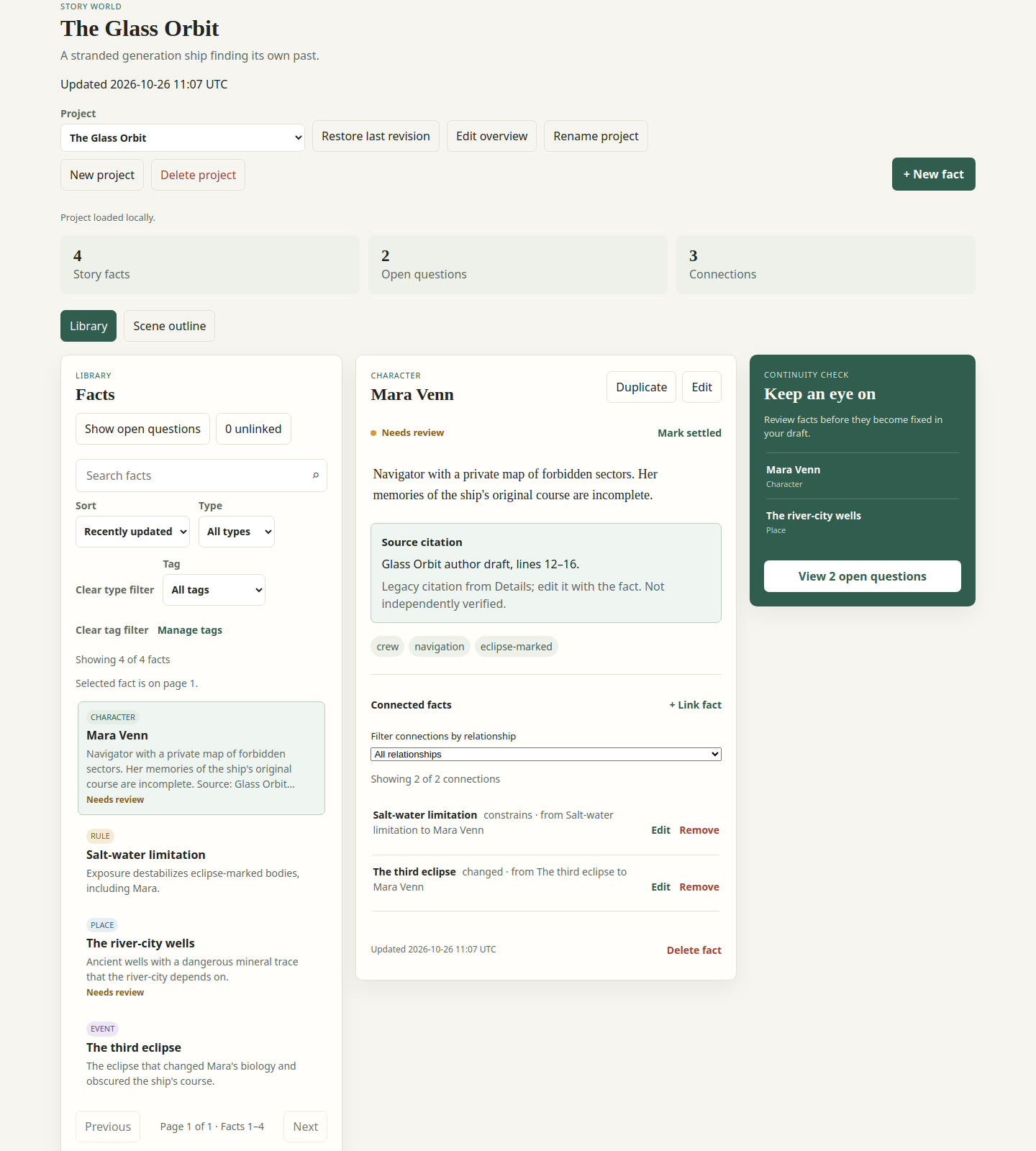
Choose Library. The left column lists short previews; select a title to read the complete record in the middle column. Previews are intentionally abbreviated. Use Previous and Next to move through pages; filtering applies to the whole project, not just the visible page.
Search matches title, details, and type. Combine Type and Tag with search, Show open questions, or unlinked. Filters combine: a fact must match them all. Sort by recent update, title, or type. Clear all filters returns to the complete library. A selected fact can remain in the detail panel while a filter hides its card; the selection notice explains this.
For an imported manuscript, start with a character or place type, then select a chapter or review tag. Look for event facts using Type: Event; older imported event facts do not automatically become outline scenes. Keep evidence-heavy records out of the way with a focused tag or type filter.
3. Read a fact and its sources
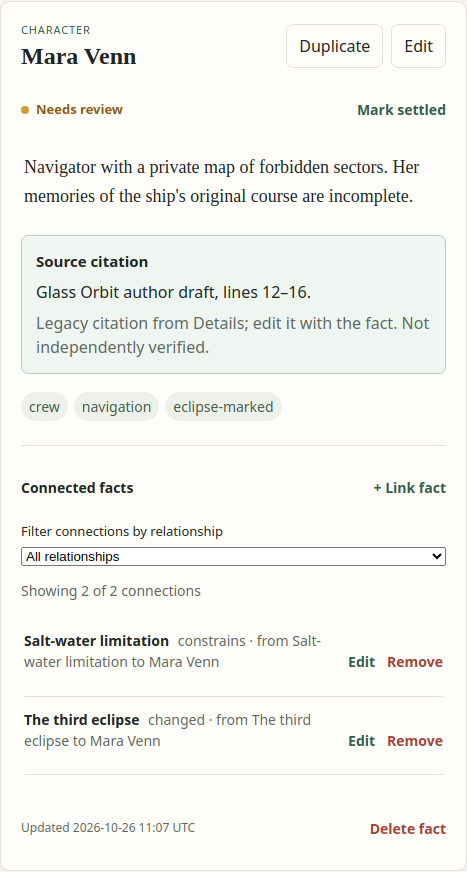
The middle panel shows the selected fact's type, full title, editorial status, details, tags, source citation when recognized, relationships, and update time. Settled means your current editorial choice; it does not prove a claim. Needs review marks a fact for follow-up.
Legacy imports may end a Details field with a separate paragraph beginning Source:. That final citation is displayed in a distinct Source citation region. It remains part of the original saved Details text and is available in Edit; this is a compatibility display, not a new evidence record or a verified reference. Inline mentions of “Source:” remain ordinary prose. Line ranges identify physical source lines, not story time.
Preserve citations and exact quotations when editing. A citation alone does not resolve who spoke, whether a report is reliable, or whether two labels name the same person. Follow linked source-passage facts when provided.
4. Write and organize facts
Use New fact for a character, place, event, object, rule, or other detail. Supply a title, status, tags, and Details, then Save fact. Edit opens the selected record. Duplicate starts an independent unsaved copy; saving creates a new fact, without copying relationships. Cancel leaves the saved record unchanged. Do not close or reload while editing an unsaved draft.
Tags group facts across types. Enter comma-separated names; new names create project tags. Quote a tag containing a comma, for example "red, blue". Within a quoted name, escape a quote as \" and a backslash as \\. Use Manage tags to rename or delete tags; deleting a tag removes its assignments but keeps facts.
Delete fact asks for confirmation. It removes the fact and its links, and removes its scene references and associated knowledge entries. Export before substantial editing or deletion. Keep one fact per useful continuity subject; avoid treating a grouped prose summary as an automatic inventory or roster total.
5. Follow and maintain relationships
Connected facts lists links to and from the selected fact. Each entry states the relationship and its direction as “from … to …”; read the note for attribution, uncertainty, or evidence. Select the linked title to inspect the other fact.
Use Search connections for a literal, case-insensitive match in the other fact's title or ID, or the link ID, relationship, or note. Search and Filter connections by relationship work together. The count distinguishes matching connections from the selected fact's total. Selecting a fact clears the search; changing the selected fact resets the relationship filter. Link fact chooses a destination, relationship wording, and optional note. Edit beside a connection changes wording or note, retaining its endpoints. Remove removes only the link after confirmation; both facts remain.
6. Review uncertainties and aliases
New identity assertion opens an explicit claim form in v3; older projects first review the format upgrade. You need two distinct facts. Choose the endpoints, original observed spelling, identity relation, mode and editorial disposition. Reports and beliefs require a speaker; all modes except writer inference and drafting note require cited passages. Scope citation choices to an exact source version, then search passage excerpts, IDs, source labels or version labels; matching is case-insensitive after trimming. The version selector includes source and version IDs because labels may repeat; range-only passages can be found by their passage ID. Filtering never changes ordered citations already in the draft, including citations outside the current results. Choose a passage and Add citation; inspect its exact excerpt, reorder or remove draft citations before saving. Neither titles nor evidence are selected as identity conclusions automatically. Saving appends a record without merging or renaming facts. Opposing or rejected claims stay visible. To correct an endpoint, relation or spelling, add a successor assertion and retain the original; use Edit editorial details on the existing claim to update mode, speaker, disposition, ordered citations or note. Its endpoints, original spelling and relation stay fixed. A failed save keeps the draft open with its citation scope and search.
Keep an eye on highlights facts marked Needs review. View open questions filters the library to those facts. These are editorial review flags, separate from the plain-text questions attached to a scene.
For competing spellings or numbered placeholders, keep separate records, follow the cited passages, and record an explicit possible-identity relationship with an explanatory note. Do not rename or merge merely because two names appear close together. Use Mark settled only when you have made a deliberate editorial decision; Mark needs review reopens it.
The project toolbar’s Identity assertions opens a read-only, project-wide summary in stored order, ten claims per page, with conflict-pair count and links back to each From, To, and Speaker fact. It is available in every format; v1/v2 projects must be explicitly upgraded to v3 before summaries appear. The catalog does not search or edit claims. Open a fact inspector for full details and evidence, or create claims from a fact.
For a v3 project that already contains structured claims, Identity assertions shows claims where the selected fact is an endpoint or speaker. Its From, To, and available Speaker controls name the fact and its ID, so same-titled facts remain distinguishable. Choose one to return to that fact in the Library; current filters remain in place, and use the existing selected-fact action if they hide it. Conflicting claims flags directly opposing identity relations; rejected claims remain visible and a disposition is your editorial judgment. Use Filter identity assertions by disposition to show All, Proposed, Accepted or Rejected claims, with matching and total counts. Filtering keeps ledger order and never hides the conflict warning; the warning explains when conflicting claims are outside the current filter. Selecting a fact or loading a project resets the filter to All. A successful assertion save reveals its disposition and page; a failed save keeps your filter, page and draft. Use the assertion paging controls and expand evidence to read source/version details, ranges and exact excerpts. This view does not edit records or verify quotations. Choose Sources in the project controls to create source identities and versions. Search sources by label or ID; search versions by label, ID, source label or ID, or digest. Searches ignore case and surrounding spaces, keep ledger order, and filter before ten-record pages. Each catalog has independent search and paging. Reopening Sources clears the searches; a successful save clears its catalog search and reveals the new record, while a failed save keeps the draft and search. Passages can be added through Sources; use New identity assertion in the Library to author a claim. The app neither merges identities nor infers character knowledge.
7. Build a scene outline
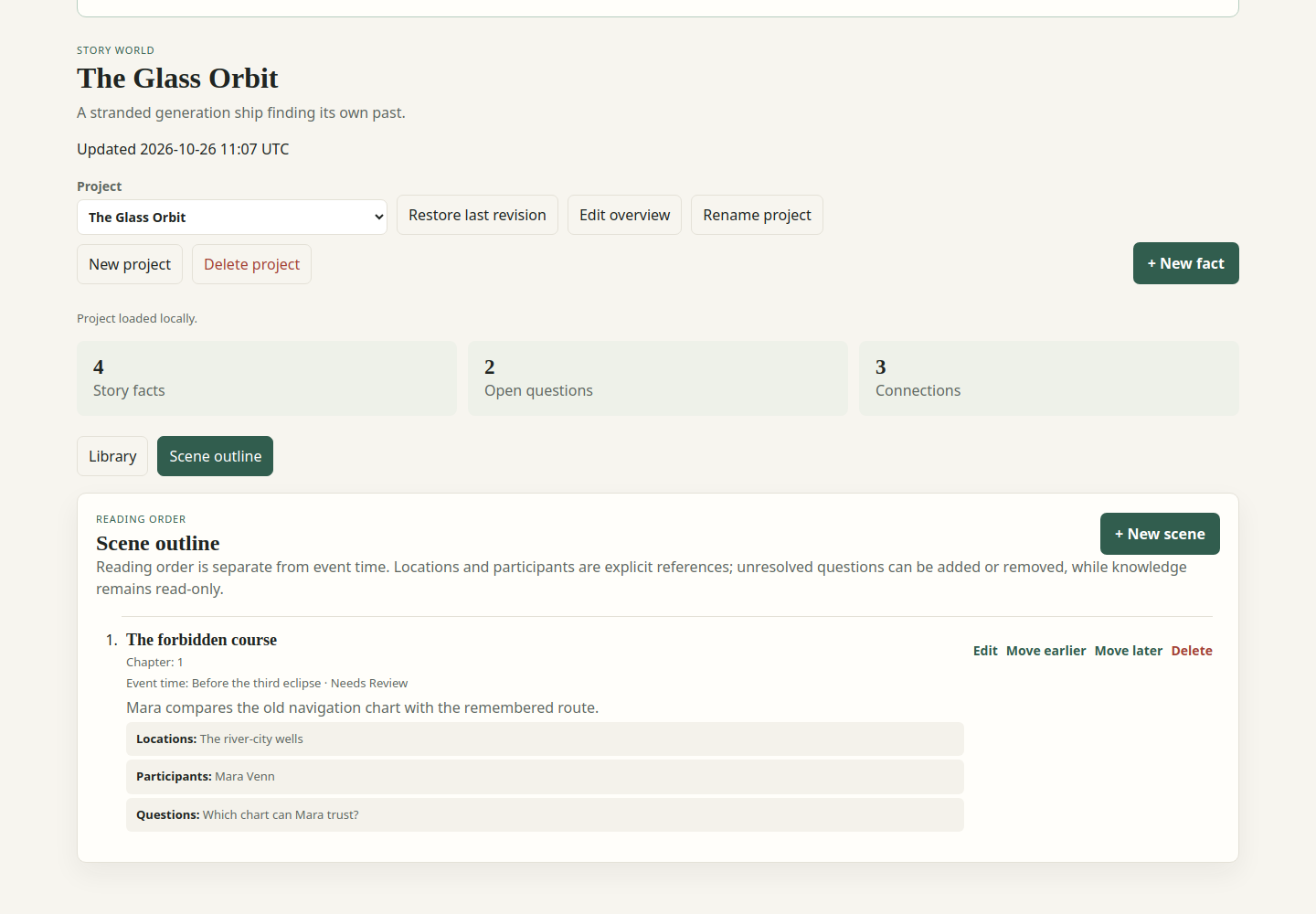
Choose Scene outline to work separately from the fact library. An older project shows Enable scenes. Export first: saving its first scene explicitly enables the newer scene format; older apps may not understand that backup. Imported event facts stay in the library and are not converted automatically.
Use New scene to enter a title, summary, optional chapter, and optional event time with its own review status. Pick facts and use Add location or Add participant; either role may reference any fact type. The same fact can serve both roles. Order or remove selected references with their controls.
Enter each unresolved question and select Add question. Edit one question at a time; save or cancel that question before saving the scene. Cancel keeps its prior wording. Removing a question affects only the scene draft until Save scene. The editor guards unfinished question drafts.
Save scene commits the scene locally. Move earlier and Move later change reading order. Chapter text and event time do not reorder scenes. Edit changes the scene; Delete confirms removing it while leaving facts intact. Imported character knowledge is displayed read-only: participants, reading order, and event time do not imply who knows what.
8. Back up, restore, and recover
After adding a version, use New passage in Sources to cite its half-open range (start included, end excluded). Lines start at one and columns at zero, counting Unicode scalar values rather than UTF-16 units. Enter an optional exact excerpt; paste preserves original line endings and whitespace, and edits preserve untouched text. The app checks bounds, not whether the quotation matches the file. An empty excerpt creates a range-only citation. Passages are immutable: corrections add a new record. Use the independent passage pages and expand metadata to inspect IDs and excerpts. In v3, each passage row also says how many identity assertions cite that exact passage ID, across proposed, accepted and rejected dispositions. This count describes recorded citations; it does not judge what a passage supports. Choose a Source version to show only passages that cite that exact immutable version; range-only citations remain in that result. The selector shows source and version IDs because labels may repeat. Search then filters that scoped result by passage excerpt, ID, source label, and version label without changing saved records; it ignores letter case and trims surrounding spaces. Results keep ledger order and use ten records per page. Opening Sources or successfully saving a passage clears both controls and resets the catalog predictably.
Sources opens the paged source catalog. Legacy projects can review the format upgrade there without changing data. In v3, use New source for a label, then New source version to select that identity and enter a version label, original-byte SHA-256 digest and line endings. The app fixes encoding to UTF-8 and Unicode normalization to none; no file is uploaded or verified. Keep BOM and original bytes when computing the digest outside the app. Labels may repeat; IDs distinguish records. Expand Version metadata to inspect IDs, fingerprints and coordinates. These create-only controls never replace an earlier version; corrections require a new record. Failed saves leave the draft open.
Project format below the project title shows its stored version. Review format upgrade previews an optional v1/v2 to v3 upgrade, retaining existing records and an archive without extracting scenes or evidence. Choose Download pre-upgrade backup, confirm you kept it, then Upgrade to format v3. Cancel leaves the project untouched. Older apps may not open upgraded backups. Ordinary load, import and edits preserve the current format; compatible view changes apply automatically.
Export before major revisions, format upgrades, clearing browser data, or changing devices. A project remains in this browser profile and origin: another browser, device, port, or address has separate storage. There is no account, cloud sync, or server backup. Copy your exported JSON to the other device and Import it there.
Saves are local. If a save fails, read the status message; the authoritative project stays unchanged. A stale-tab conflict requires reopening current data before retrying. Keep your unsaved wording separately if necessary.
Restore last revision, when available, confirms replacing the current project with the preceding saved revision. Export first. The displaced current version becomes the next revision, allowing a second restore to return to it. This is one-step recovery, not unlimited history.
If a project cannot load safely, the recovery screen can retry, download its preserved raw record, restore a valid revision when available, or create a separate empty project. Creating another project does not erase the preserved record. A raw recovery download may need repair before it can pass Import validation.
New saves and imports have an 80 MiB JSON limit with space reserved for a new project ID. Older larger records can open and export in full but need reduction before saving. Storage availability also depends on your browser. Export is the portable backup; recovery revisions are not a substitute.
Optional local source digest
In Sources, New source version can calculate a SHA-256 digest from a selected UTF-8 file up to 16 MiB. It hashes original bytes, including BOM, NUL, Unicode and line endings, entirely in the browser. Choose Use digest to copy the pending result into the manual field. File names, contents and metadata are never saved; only an applied digest and the chosen source-version form metadata persist when you save the source version. The file is never uploaded.
9. Keyboard and small-screen use
Use Tab and Shift+Tab to move between controls and Enter or Space to activate buttons. Visible focus indicates your location. Selecting a fact moves focus to its heading. Dialogs keep focus inside and return it on close. Escape cancels where supported; heed a draft warning before discarding work.
On a narrow screen, panels stack in reading order. Fact and connection regions scroll independently; keyboard users can focus those regions before scrolling. Use the Library and Scene outline buttons to change work areas. The guide's contents links jump directly to a workflow.
10. Current boundaries
Continuity Forge has no accounts, shared editing, AI service, automatic extraction, hosted writer data, payments, or external source fetching. It never verifies a manuscript citation against a source file. Backups retain compatible unknown fields, but those fields are not necessarily editable features.
The current outline supports explicit locations, participants, questions, and event-time text. Identity assertions and source/passage authoring are available after explicit v3 opt-in. Relationship graphs, route maps, and time-scoped resource or injury ledgers remain future work. Do not derive exact counts or identity decisions from grouped summaries.
Identity assertion search
In a fact’s Identity assertions ledger, Search identity assertions finds case-insensitive literal text after trimming surrounding spaces. It searches assertion IDs, observed spelling, notes, relation, mode, endpoint titles and IDs, and optional speaker titles and IDs. It combines with the disposition filter before ten-record pages and keeps ledger order. Searching never resolves a conflict: the warning notes claims hidden by a search or filter. Selecting a fact clears both controls; a successful save clears the search and reveals the saved disposition and page, while a failed save retains the search, filter, page, and draft.
The project toolbar’s Identity assertions opens a read-only project ledger. Search literal claim text or filter by disposition before its ten-claim pages; matching and total counts remain visible. Its conflict warning covers the complete ledger and explains when a search or filter hides a conflicting claim. Expand evidence to read assertion, evidence, source, and version IDs, metadata, ranges, and any exact excerpt. In Sources, each passage offers View citing identity assertions. It opens the same ledger scoped to the exact passage ID, shows the passage context, and can be combined with its search and disposition controls before paging. Clear passage scope to return to the full ledger while keeping those controls. This is recorded citation membership, not a judgment that a passage proves a claim; rejected and opposing claims remain part of the full conflict warning. Closing the scoped ledger returns to the Sources toolbar without reopening Sources. Closing the ledger or changing projects clears these display controls; they never edit records.
For a legacy project, the catalog offers Review format upgrade; it closes the catalog and opens the existing backup-first upgrade review without changing your project. An empty v3 catalog offers New identity assertion when the project has at least two facts. That action closes the catalog and opens the usual claim form; use Cancel or Escape to leave the project unchanged. Filtered results with no matches remain read-only.